
10.0.0.1 IP
Most people search for 10.0.0.1 only when their Wi-Fi stops working. This is the worst time to learn something new. Many users type it wrong as 10.0.0.0.1. That address does not exist. A real IP address always has four number parts.
Think of 10.0.0.1 like the front door of your router. Big brands like Xfinity and Cisco and LPB Piso WiFi use this same address. This address only works on your own Wi-Fi. No one from outside can reach it. That is good for your safety.
This page lets you do more than change your Wi-Fi password. You can see which devices are connected to your Wi-Fi. You can remove any device you don’t recognize. You can also change your network name.
The most important step is changing the default admin password. Most routers use the same weak password for everyone. This one change protects your whole home network. It only takes two minutes.
What Is 10.0.0.1 and Why It Matters
10.0.0.1 is a private IP address that many routers use as their default gateway. It is not a public website and cannot be accessed from the internet. You can only use it while your phone, laptop, or computer is connected to your own Wi-Fi or local network.
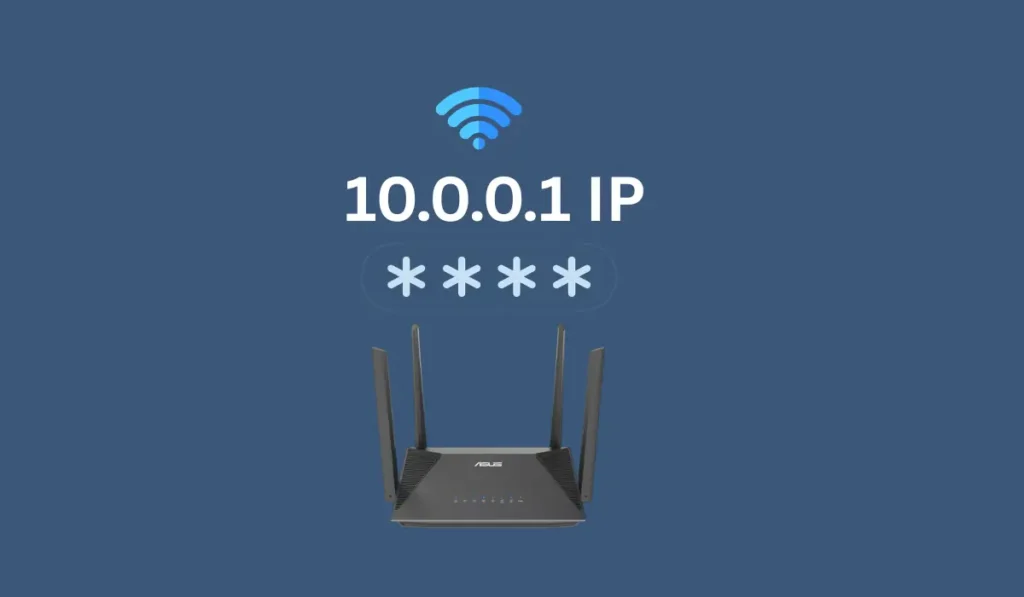
When you enter http://10.0.0.1 into your browser, it opens your router’s admin login page. After signing in, you can change your Wi-Fi name and password, update security settings, see which devices are connected, block unknown users, and manage your network from one place.
Many internet providers and networking devices, including Xfinity, Cisco, and some LPB Piso WiFi systems, use 10.0.0.1 as their default login address. It belongs to the private Class A IP address range, which is reserved only for local networks. Because of this, people outside your network cannot access it.
Knowing what 10.0.0.1 does is useful whenever you need to fix slow Wi-Fi, improve your network security, remove unwanted devices, or customize your router settings. It is a simple address, but it gives you full control over your home or office network.
10.0.0.1 vs 192.168.1.1 vs 192.168.0.1
Not every router uses the same address. Some pick 10.0.0.1. Others pick 192.168.1.1 or 192.168.0.1 instead.
All three work the same basic way. Each one is a private address. None of them can be reached from the outside internet.
The real difference comes down to the manufacturer. 10.0.0.1 shows up more in business networks and ISP gateways like Xfinity and Cisco. Home routers from brands like TP-Link and Netgear often default to the 192.168.x.x range instead.
| Address | Common Users |
|---|---|
| 10.0.0.1 | Xfinity, Cisco, business gateways |
| 192.168.1.1 | Netgear, Linksys, home routers |
| 192.168.0.1 | TP-Link, D-Link, home routers |
None of these addresses is safer than the other. Security depends on your password and your settings. Not on which number you type into the browser.
Common Router Brands That Use 10.0.0.1
Every router company picks its own login address. But 10.0.0.1 shows up more often than most people expect. It keeps internal network control simple and secure for the manufacturer.
Not every brand uses the same username and password. Guessing wrong wastes your time. This quick table saves you that trouble.
| Brand | Username | Password |
|---|---|---|
| Xfinity (Comcast) | admin | password |
| LPB Piso WiFi | admin | admin |
| Cisco | cisco | cisco |
| Technicolor | admin | password |
| Aztech | admin | password |
| Intelbras | admin | admin |
| Arris | cusadmin | highspeed |
| Huawei | admin | admin |
These are only starting points. Many people never change them after setup. That single habit is what most hackers count on.
How to Log in to Your Router via 10.0.0.1
Logging into your router is not as hard as it sounds. Your device just needs to sit on the same network first. A Wi-Fi connection or an Ethernet cable both work fine.
Open any browser you already use. Chrome and Safari and Edge all work the same way here. Type http://10.0.0.1 into the address bar and hit Enter.
A login screen will pop up right away. It asks for a username and a password. Check the sticker on your router if you never set your own.
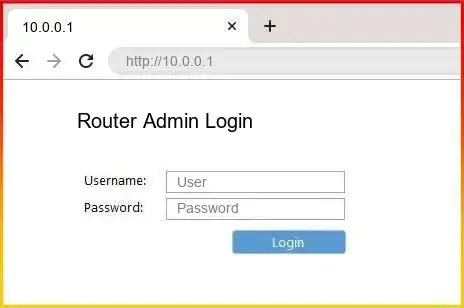
Once you are in you will see the full admin dashboard. This is where the real control lives. Wi-Fi password changes and device access and parental controls all sit here.
One small habit matters more than the rest. Change the default admin password the moment you log in for the first time. This one step keeps unauthorized users out of your network for good.
10.0.0.1 Admin Login Video Guide
What You Can Control from 10.0.0.1
Getting inside the admin dashboard feels like sitting in the driver’s seat of your own network. This one page holds more power than most people realize. Every setting here shapes how safe and how fast your Wi-Fi actually runs.
Here is what you can adjust:
- Wi-Fi Name (SSID): Give your network a name you actually recognize. This helps you spot your own connection in a crowded list.
- Wi-Fi Password: Build a strong password using letters and numbers and symbols together. A weak one is the easiest door for outsiders to walk through.
- Guest Network: Let visitors go online without ever touching your main network. Your personal devices stay hidden and protected.
- Device Management: See every device sitting on your Wi-Fi right now. Kick off any device you don’t recognize.
- Bandwidth Priority: Push extra speed toward the devices that need it most. A gaming console or a smart TV can jump ahead of the rest.
- Parental Controls: Set limits on screen time for kids. Block specific websites before they even load.
- Firmware Updates: Keep your router’s software current. Old firmware is one of the most common security bugs hackers rely on.
Small changes here add up fast. A few minutes today can save you from bigger headaches later. This is the real reason 10.0.0.1 matters so much.
Advanced Settings You Can Configure
Once the basics feel easy you can go a step further. The admin dashboard hides a few advanced tools too. These settings matter most for gamers and remote workers and small businesses.
Port Forwarding
This setting opens a specific door for a specific device. Gamers use it for online play. Businesses use it to host a server from home.
Give the target device a fixed local address first. A changing address breaks the forwarding rule every time. Then enter the port number inside the admin panel and save.
Static IP and DHCP Reservation
Your router normally assigns addresses on its own through DHCP. This is fine for most devices. But some devices need the same address every single time.
A DHCP reservation locks one address to one device’s hardware ID. This keeps port forwarding and camera feeds working without breaking. Look for this option under DHCP settings inside the dashboard.
Bridge Mode
Two routers running at once can cause hidden problems. This is called double NAT. Bridge mode removes one layer and lets your own router take full control.
Turning this on disables the first gateway’s Wi-Fi and firewall completely. Your second router then handles everything instead. Only enable this if you already own a second router to replace it.
Custom DNS
Your router uses a default DNS server from your provider. Some of these are slower than public options. Switching to a service like Google’s 8.8.8.8 can speed up page loading across your whole network.
IP Address Conflict — What It Means and How to Fix It
Two devices can sometimes grab the same address by accident. This is called an IP conflict. It usually happens when a second router shares the same network.
The result feels confusing at first. You might land on the wrong device’s login page. Or the page may not load at all.
The real fix is simple once you know it. Give the second router a different static address instead of duplicating the first one. This keeps every device visible on its own separate line.
Restarting your router also helps in smaller cases. It forces DHCP to hand out fresh addresses to everyone. Most small conflicts clear up after just one restart.
Common Problems with (and Easy Fixes)
Even simple things break sometimes. The login page is no different. Most problems here take less than a minute to fix.
10.0.0.1 Not Loading
Clear your browser’s cache first. This fixes the problem more often than people expect. If it still won’t load switch to Chrome or Firefox or simply restart your router.
Typing Error – 10.0.0.0.1
This extra zero trips up almost everyone at some point. A real IP address only has four parts. The correct one is 10.0.0.1 and nothing more.
Router Not Responding
Check every cable first. A loose cable or a bad port blocks access more than people realize. Unplug your router for 10 seconds then plug it back in.
Login Page Timeout
A VPN or a proxy is often the hidden cause here. These tools block local network addresses without any warning. Turn them off before you try logging in again.
Can’t Log in from Mobile
Mobile data quietly blocks this every time. Turn it off completely. Make sure your phone sits only on your router’s own Wi-Fi.
Forgot Password
Find the small reset button on the back of your router. Hold it down for 15 to 30 seconds. This brings back the factory settings and the default login.
Find Your Router’s IP on Any Device
Sometimes 10.0.0.1 simply isn’t your router’s real address. Every device already stores this information somewhere. You just need to know where to look.
For Windows
Press Windows and R together then type cmd and hit Enter. Type ipconfig inside the Command Prompt window. Look for “Default Gateway” since that line is your actual router IP.
For macOS
Open System Preferences then click Network then Advanced then the TCP/IP tab. Your router’s IP sits right next to the word “Router.” This number is what you type into your browser.
For Android
Go to Settings then Wi-Fi then tap your connected network then Advanced. Look for the word “Gateway” on this screen. If it shows 10.0.0.1 you already have the right login address.
For iPhone (iOS)
Open Settings then Wi-Fi then tap the small (i) icon next to your network. The “Router” field shown here is your real IP address. Use exactly this number if 10.0.0.1 didn’t work for you.
Why 10.0.0.0.1 Is Invalid
One extra zero is all it takes. That tiny mistake turns a working address into a broken one. It happens more often than most people admit.
A real IP address follows one strict rule. It only has four number groups separated by dots. Nothing more and nothing less.
Type five groups instead of four and the page simply won’t load. You will see login errors instead of your router’s dashboard. The fix is always the same small correction.
| Incorrect Format | Correct Format |
|---|---|
| 10.0.0.0.1 | 10.0.0.1 |
| 1.0.0.0.1 | 10.0.0.1 |
| http://10.0.0.0.1 | http://10.0.0.1 |
One more habit trips people up here too. Typing the address into a search engine instead of the address bar. Always type http://10.0.0.1 directly into the address bar itself.
LPB Piso WiFi and 10.0.0.1
Coin-operated Wi-Fi feels almost old school in the Philippines now. But LPB Piso WiFi machines are still everywhere. A single peso can buy you real internet time on the spot.
10.0.0.1 sits quietly behind every one of these machines. It works as the admin portal for the whole system. Owners use it to control sessions and pause times and pricing all from one place.
This single address does a lot of heavy lifting. Business owners can watch every active connection in real time. They can set time limits or adjust pricing whenever they need to.
Pausing and resuming a session takes seconds through this same portal. Firmware updates and remote reboots also happen right here. No need to physically touch the machine at all.
Tracking users matters just as much as selling minutes. Owners can see exactly who is connected and control access instantly. Want the full password reset walkthrough? Check our LPB Piso WiFi login guide for the complete steps.
This is why 10.0.0.1 stays essential for both home users and small business owners. Real-time control means fewer surprises and fewer lost sales.
Popular LPB Piso WiFi Guides
Security Tips for Safe Router Access
Real security rarely needs anything complicated. A handful of small habits does most of the work. Build these once and your network stays protected for years.
Change the Default Password
Every router ships with the same weak login for everyone. Change it the moment you log in for the first time. This single step blocks the easiest attack there is.
Use a Strong Password
Mix uppercase and lowercase letters together. Add numbers and symbols into the mix too. A random combination is always harder to guess.
Update Firmware Regularly
Old firmware carries old bugs that hackers already know about. Check for updates once a month. This one habit quietly closes a lot of security gaps.
Disable Remote Management
Most people never need to control their router from outside their home. Turn this feature off unless you truly need it. Fewer open doors means fewer risks.
Enable WPA3 Encryption
This is the newest Wi-Fi security standard available today. It protects your network far better than older protocols. Turn it on if your router supports it.
Avoid Public Access
Never hand out your Wi-Fi password to people you don’t know. Every extra device on your network is another risk. Keep access limited to people you actually trust.
Together these habits keep hacking attempts and data leaks far away from your network.
FAQs
Conclusion
10.0.0.1 looks small but it holds real power. One address gives you full control over your entire Wi-Fi network. Every setting you need lives right behind it.
You can rename your network in seconds. You can lock down your password and block strangers just as fast. Problems that once felt confusing become quick fixes once you know this address.
A few habits keep everything running smoothly. Always type 10.0.0.1 and never the broken five-part version. Keep your admin password fresh and your firmware updated.
Your router quietly guards your entire home. Treat it well and it keeps your connection fast private and dependable every single day.