192.168.8.1 Admin Login – Panel Access & Setup
Your router is the heart of your home or office network. It manages your internet connection, connects all your devices, and lets you control how your network runs all through one simple address: 192.168.8.1. Whether you’re setting up a new router, troubleshooting a slow connection, or just trying to change your WiFi password, this address is usually your starting point.
Below, I’ll walk you through everything you need to know, from the basics of what this address actually does, to step-by-step login instructions, troubleshooting tips, and the advanced settings hiding inside your router’s dashboard.
What Is 192.168.8.1?
192.168.8.1 is a private IP address used by many routers and mobile hotspots to open their admin panel. It’s not something you’ll ever see floating around on the public internet and that’s exactly the point. Private IP addresses like this one are reserved specifically for local networks, meaning they only work within your home, office, or wherever your router happens to be sitting.
Here’s the difference that trips a lot of people up: a public IP address is what identifies your network to the outside world websites, servers, and other devices on the internet use it to send data back to you.
A private IP address, on the other hand, never leaves your local network. It’s used purely for internal communication, like your laptop talking to your router, or your router talking to a connected printer. Because of this, private IP addresses such as 192.168.8.1 offer a layer of built-in security. Nobody outside your network can type this address into their browser and expect to reach your router’s login page they’d need to be physically connected to your network first.
Once logged in, you get full control over:
- Wireless settings network name, password, frequency band (2.4GHz vs 5GHz), and channel selection
- Security options encryption type, firewall settings, and access restrictions
- Parental controls content filtering, device-specific time limits, and scheduled internet access
- Firmware updates keeping your router’s internal software current and secure
I’ve found that a lot of people log in once during setup and never go back but checking in on these settings every few months, especially firmware updates, genuinely makes a difference in how stable and secure your network stays over time.
192.168.8.1 Login Requirements
Before logging in, make sure you have the following ready. Missing even one of these is usually the reason people get stuck staring at a blank browser tab wondering why nothing is loading.
| Requirement | Details |
|---|---|
| Router | Must use 192.168.8.1 as its gateway |
| Device | Computer, smartphone, or tablet |
| Connection | Active WiFi or Ethernet connection |
| Browser | Chrome, Edge, Firefox, or Safari |
| Credentials | Router username and password |
| Power | Stable power and network connection |
A few extra notes worth mentioning here, based on things I’ve run into personally:
- Router compatibility matters. Not every router uses 192.168.8.1 it’s largely a Huawei-specific default. If your device isn’t a Huawei router or MiFi unit, this address may not work at all, and you’ll need to find your actual gateway address (covered further down).
- Wired connections tend to be more reliable than WiFi when logging in for the first time, especially if you’re troubleshooting a connection that’s already acting up. There’s less room for interference or dropped signals getting in the way.
- Browser choice can occasionally matter too. Some older router firmware doesn’t play nicely with certain browser versions or aggressive ad-blockers, so if the page won’t load, switching browsers is worth trying before assuming something’s broken.
Having all of this ready makes the login process quick and avoids common connection issues later on.
How to Access 192.168.8.1 Router Login Page
Follow these simple steps to reach your router’s dashboard:
- Connect your device to the router using WiFi or an Ethernet cable.
- Open any browser on your device.
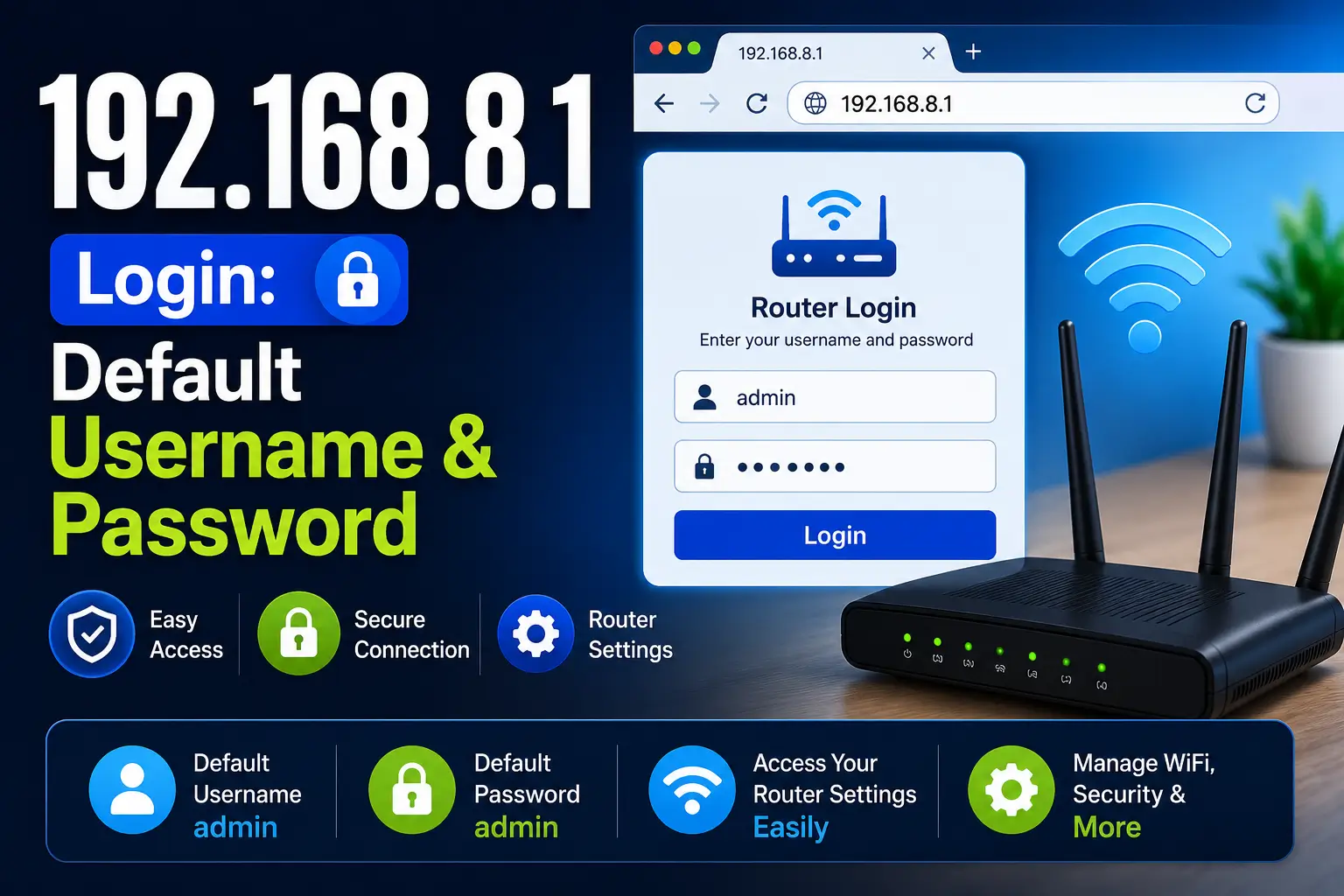
- Type 192.168.8.1 into the address bar and press Enter.
- Wait for the login page to load.
- Enter your username and password.
- Click Login to open the admin panel.
In most cases, this whole process takes under a minute. That said, a few small details can make it smoother:
- Type the address directly rather than searching for it typing “192.168.8.1” into your browser’s search bar instead of the address bar can sometimes trigger a Google search instead of loading the page. Make sure it goes into the actual URL/address field.
- Double-check for typos. It’s an easy address to mistype, especially on mobile keyboards where autocorrect sometimes tries to “fix” the numbers.
- Give it a few seconds. Especially right after a router restart, the admin panel can take a little longer to respond as the router finishes booting up.
Once the login page appears and you enter your credentials correctly, you’ll land directly on the admin dashboard, which is your control center for everything from WiFi settings to connected device management.
Default Username and Password for 192.168.8.1
Router brands often use different login details, and this is one of the most common sticking points people run into. Here are the most common combinations:
| Username | Password |
|---|---|
| admin | admin |
| admin | password |
| admin | (blank) |
| cameras | cameras |
If none of these work, check the sticker on your router or look in the user manual most manufacturers print the default login details directly on the device, usually on the bottom or back panel near the serial number.
A couple of things worth keeping in mind here:
- If someone else set up the router, whether that’s your internet provider, an office IT team, or a previous owner, the default credentials may have already been changed. In that case, none of the combinations above will work, and you’ll need to either ask whoever configured it or reset the router to factory settings.
- Resetting the router (usually by holding a small reset button for 10–15 seconds) restores the default username and password, but it also wipes any custom settings you’d previously configured so treat it as a last resort, not a first step.
- Case sensitivity matters. “Admin” and “admin” are treated as different entries by most router firmware, so make sure your caps lock isn’t accidentally on.
How to Find Your Router IP Address
If your router uses a different gateway address, here’s how to find it:
- Open your device’s network settings.
- Select your current WiFi or Ethernet connection.
- Go to the advanced network information section.
- Look for “Default Gateway” or “Router.”
- Note the number shown this is your router’s IP address.
- Enter it into your browser to open the login page.
This step is more common than people expect. Not every router even every Huawei device necessarily defaults to 192.168.8.1. Some ISPs configure custom gateway addresses when they install your router, especially bundled ISP-provided routers rather than ones you’ve bought separately.
A few quick ways to double check, depending on your device:
- On Windows, you can open Command Prompt and type
ipconfigthe number next to “Default Gateway” is what you’re after. - On Mac, going into System Settings → Network → Wi-Fi → Details will show the router address under the TCP/IP tab.
- On smartphones, tapping into your connected WiFi network’s details usually shows the gateway address directly without needing extra apps.
Once you’ve confirmed the correct address, the rest of the login process works exactly the same way as described above.
How to Change WiFi Name (SSID)
- Log in to your router dashboard.
- Go to WiFi or Wireless Settings.
- Replace the current SSID with your new WiFi name.
- Click Save or Apply.
- Reconnect your devices using the new network name.
Changing your SSID isn’t just a cosmetic choice. There are a couple of practical reasons to do it:
- Easier identification if you live in an apartment building or office with dozens of overlapping networks, a generic name like “HUAWEI-2.4G” makes it hard to tell which network is actually yours.
- Avoiding default-name targeting routers left with factory-default SSIDs can sometimes signal to anyone scanning nearby networks that the device likely also still has default login credentials, since people often don’t bother changing either.
One small thing worth noting: after changing your SSID, every device that was previously connected will need to reconnect manually using the new network name, since it essentially appears as a “new” network to your devices.
How to Change Router Login Password
- Log in to the admin panel.
- Find the administrator settings section.
- Create a strong password using letters, numbers, and symbols.
- Save the changes.
- Store your new password somewhere safe.
This is genuinely one of the most overlooked security steps. A lot of routers sit for years with the factory-default admin password still active, which means anyone who connects to your network intentionally or not could potentially access your router’s settings if they know (or guess) the default combination.
A few practical tips when setting a new password:
- Avoid anything obvious like “12345” or your WiFi name repeated.
- Mixing uppercase, lowercase, numbers, and symbols makes the password meaningfully harder to guess.
- Write it down somewhere safe, or store it in a password manager router admin passwords are easy to forget since you’re not typing them in daily like a phone or email password.
Common 192.168.8.1 Login Problems and Fixes
| Problem | Fix |
|---|---|
| Login page not opening | Double-check the IP address and confirm your device is connected to the router |
| Wrong username or password | Check the router label for default credentials, or reset the router |
| Browser loading errors | Clear your browser cache or try a different browser |
| No connection to router | Restart both the router and your device, then try again |
Going a bit deeper into each of these, since troubleshooting is often where people get stuck the longest:
Login page not opening This usually comes down to one of two things either the IP address was typed incorrectly, or the device isn’t actually connected to the router’s network. If you’re on WiFi, confirm you’re connected to the correct network name, not a neighboring one. If you’re on Ethernet, check that the cable is firmly plugged into both the router and your device.
Wrong username or password If you’re confident you’re entering the address correctly but the credentials keep getting rejected, it’s worth trying all four default combinations listed earlier before assuming they’ve been changed. If they have been changed and you don’t remember them, a factory reset is usually the fastest fix.
Browser loading errors Occasionally, a browser’s cached data can interfere with loading a router’s local admin page, especially if you’ve logged into a different router recently using the same browser. Clearing the cache, or simply trying an incognito/private window, often resolves this instantly.
No connection to router This is the most basic but most commonly missed issue. A quick restart unplugging the router for about 10 seconds and plugging it back in resolves a surprising number of connectivity issues, since it clears temporary glitches in the router’s memory.
Advanced Settings Available Through 192.168.8.1
The admin panel also gives you access to:
- Automatic IP address assignment (DHCP) for connected devices this handles assigning local IP addresses automatically so you don’t have to configure every device manually.
- A separate guest network to keep your main network private useful for visitors or smart-home devices you’d rather isolate from your primary devices.
- Internet restrictions and browsing schedules for specific devices handy for managing kids’ screen time or limiting bandwidth-heavy devices during work hours.
- Permission settings for external apps and services controlling which outside applications are allowed to communicate with devices on your network.
- Software and firmware updates for better performance and security arguably one of the most important sections, since outdated firmware is one of the most common security vulnerabilities in home networks.
Most people never touch these settings after initial setup, but spending ten minutes exploring this section every few months is genuinely worth it especially the firmware update section, which quietly patches security holes you’d otherwise never know existed.