192.168.0.1 – Router Login, WiFi & Settings
If you’ve ever needed to change your WiFi name, reset a password, or check who’s connected to your home network, chances are you’ve come across 192.168.0.1. It’s one of the most common gateway addresses used by routers from brands like D-Link, NETGEAR, TP-Link, and several others.
This guide walks you through everything about 192.168.0.1 from logging in and changing your password to fixing common errors and setting up parental controls. Whether you’re setting up a new router or just want more control over your network, you’ll find every step here.
What Is 192.168.0.1?
192.168.0.1 is a private IP address that acts as the default gateway for many routers. It gives you direct access to your router’s admin panel, where you can manage almost every part of your home network.
Since it’s a private address, it only works when your device is connected to the same local network as the router. This keeps your settings safe from outside access and lets you configure things without any technical background.
From the admin panel, you can:
- Change your WiFi password
- Update the network name (SSID)
- Manage connected devices
- Set up parental controls
- Update router firmware
- Configure security settings
How to Login to 192.168.0.1
Logging into your router dashboard only takes a few steps.
Step 1: Connect to Your Router
Connect your phone, tablet, or computer to the router using either a WiFi connection or an Ethernet cable. Just make sure your device is on the same network as the router.
Step 2: Open a Web Browser
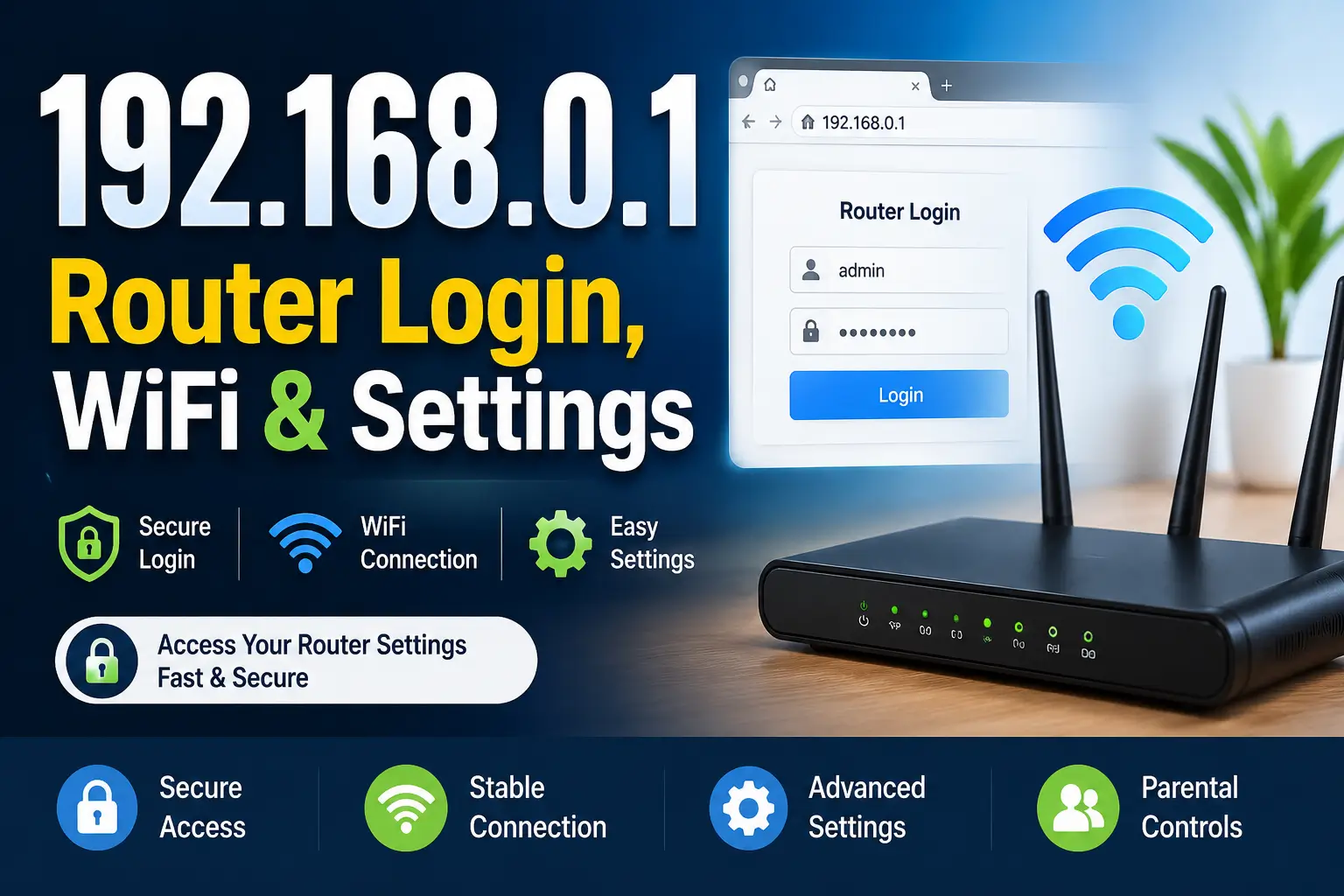
Open any browser Chrome, Firefox, Edge, or Safari all work fine. Type http://192.168.0.1 into the address bar and press Enter.
Step 3: Enter Login Credentials
A login screen will show up asking for a username and password.
| Username | Password |
|---|---|
| admin | admin |
| admin | password |
| admin | (blank) |
| (blank) | admin |
Step 4: Access the Admin Panel
Once you’re logged in, you’ll land on the router dashboard, where all the network settings are available.
Default Login Details for 192.168.0.1
Different router brands use different default credentials, but a few combinations show up again and again.
Common Default Usernames:
- admin
- user
- administrator
Common Default Passwords:
- admin
- password
- 1234
- (blank)
For your own security, change these details right after your first login. Leaving them as-is is one of the easiest ways for someone else to get into your network.
How to Change WiFi Password
Updating your WiFi password is probably the most common reason people log into 192.168.0.1.
- Login to the router dashboard.
- Go to Wireless Settings.
- Find the WiFi Password field.
- Type in a strong new password.
- Save the changes.
- Reconnect your devices using the new password.
A good password is long, avoids obvious words, and isn’t reused from another account.
How to Change Router Login Password
Your login password is different from your WiFi password, and it’s just as important to update. Leaving the default one in place is a real security risk.
- Login to 192.168.0.1.
- Open Administration Settings.
- Select Change Password.
- Enter your current password.
- Create a new, secure password.
- Save the changes.
This one step stops others from getting into your router settings without your permission.
First-Time Router Setup Checklist
Before you start using a new router day to day, run through this quick checklist:
- Change the default admin username and password
- Create a strong, unique WiFi password
- Update the wireless network name (SSID)
- Turn on WPA2 or WPA3 encryption
- Check for the latest firmware update
- Turn off any router features you won’t use
- Set up a guest network for visitors
How to Create a Guest WiFi Network
A guest network lets visitors use your internet without giving them access to your main network. This keeps your personal devices, shared files, and smart home gadgets safer from unauthorized access.
To set one up, log into the router dashboard, open the Guest Network section, turn it on, choose a name, set a password, and save your settings.
Families use this for visiting friends and relatives, and many businesses use the same setup to offer WiFi to customers without exposing their internal network.
Best Location to Place Your Router
Where you place your router affects your WiFi coverage more than most people realize.
- Place it in a central spot in your home
- Keep it away from thick walls
- Avoid putting it near microwaves or TVs
- Set it on a shelf or elevated surface
- Keep it away from metal objects
- Don’t hide it inside cabinets or drawers
Good placement means better speed and fewer dead zones around the house.
Common Mistakes During Router Setup
A lot of network issues come down to small setup mistakes that are easy to avoid.
- Leaving default login credentials unchanged
- Using a weak WiFi password
- Ignoring firmware updates
- Placing the router in a poor location
- Turning off important security features
- Sharing your WiFi password too freely
Avoiding these keeps your network more secure, more stable, and performing better overall.
Setting Up Parental Controls
Parental controls help you manage what your kids can access online.
What you can do:
- Block inappropriate websites
- Restrict internet usage times
- Monitor browsing activity
- Create child-safe profiles
Setup Process:
- Access 192.168.0.1.
- Go to Parental Controls.
- Create rules for specific devices.
- Save your settings.
This gives kids a safer space online without needing to watch over their shoulder constantly.
How to Update Router Firmware
Firmware updates matter more than people think they improve performance, fix security issues, and often add new features.
Why updates matter:
- Fix security vulnerabilities
- Improve network performance
- Add new features
- Resolve bugs
Steps to update:
- Login through 192.168.0.1.
- Open Firmware or System Update.
- Check for available updates.
- Download and install them.
- Reboot the router if needed.
192.168.0.1 Not Working? Try These Fixes
If the login page won’t load, it’s usually one of a few common issues.
Check the address. Make sure you typed it correctly:
| Correct | Incorrect |
|---|---|
| 192.168.0.1 | 192.168.o.1 |
| 192.168.0.l | |
| www.192.168.0.1 |
Verify your router’s IP. Some routers use a different default address:
- 192.168.1.1
- 192.168.100.1
- 10.0.0.1
Check your device’s default gateway settings to confirm the right one.
Other quick fixes:
- Restart your router a simple reboot solves most temporary issues.
- Clear your browser cache old cached data can block the login page from loading.
- Try another browser this helps rule out browser-specific problems.
How to Reset Your Router
If you’ve forgotten your admin password or you’re dealing with a serious issue, a factory reset may be your only option.
- Locate the Reset button.
- Press and hold it for 10–15 seconds.
- Wait for the router to restart.
- Login using the default credentials.
Keep in mind: a factory reset removes your custom WiFi name, password, security settings, and any port forwarding rules you had set up.
Router Brands That Commonly Use 192.168.0.1
Several well-known router brands use 192.168.0.1 as their default gateway, including:
- D-Link
- NETGEAR
- TP-Link
- Tenda
- Belkin
- TRENDnet
Benefits of Managing Your Router Settings
Taking a few minutes to check your router settings regularly comes with real benefits:
- Better WiFi security
- Faster internet performance
- Improved network stability
- Easier device management
- Stronger parental controls
- Better protection from unauthorized users
- Access to the latest router features
FAQs
What is 192.168.0.1 used for?
It’s a private router gateway address used to log into your router and manage its settings.
How do I access the login page?
Open a browser, type in 192.168.0.1, and log in using your admin username and password.
Why is 192.168.0.1 not opening?
This usually happens because of a typo in the address, network problems, browser issues, or a router that uses a different default IP.
Can I change my WiFi password through the admin panel?
Yes. Once logged in, go to Wireless Settings and update your password there.
Is 192.168.0.1 safe?
Yes. It’s a private address that only works within your own local network, not the wider internet.
What should I do if I forget my router password?
Do a factory reset, then log in using the router’s default credentials to start fresh.